Operating AI agents across Windows, WSL, and Linux nodes
My working environment spans Windows applications, a WSL2 development environment, remote Linux machines, and several agent harnesses. Becoming fluent in it meant learning where work runs, who owns it, what crosses each boundary, and how to recover when one layer fails. This guide turns those lessons into a smaller setup you can build yourself.
I use Windows for desktop applications, WSL2 for most command-line development, and separate Linux machines for persistent workloads, storage, and heavier compute. Claude Code, Codex, and Cursor provide different ways into that environment. A task can start in a desktop chat, edit a Linux repository, execute remotely, and return an artifact that I inspect on Windows.
That arrangement became useful as I learned to locate failures. A command can exist in one shell and disappear in another. A Windows application can reject a file that Linux can read. An agent can hang before its first response because authentication is waiting on a desktop prompt. Two capable agents can each produce a reasonable change while interfering with the same checkout.
The operating skill is knowing which boundary you are crossing and how to verify it. This guide follows a smaller version of my setup: one Windows workstation, one WSL2 distribution, one remote Linux worker, and two agent harnesses. Additional service or GPU machines are extensions of the same model.
The examples use synthetic data and invented names. They assume you already have WSL2, Git, Python 3, and SSH, and have arranged authorized SSH access to a Linux machine. They do not install an agent, provision a server, or configure a public service. The configuration excerpts are individual choices to evaluate, rather than a replacement for your existing files.
1. Draw the execution map first
A harness is the application around a model: its terminal, tools, context handling, permissions, and session lifecycle. Two harnesses using the same model can behave differently because those surrounding systems differ.
Separate the interface you are looking at from the process doing the work:
| Place | Typical responsibility | What to establish |
|---|---|---|
| Windows | Desktop editor, browser, native applications | Which application and Windows identity are active? |
| WSL2 | Linux repositories, command-line agents, local validation | Which distribution, Linux user, directory, and executable? |
| Remote Linux worker | A job that needs another machine's resources | Which host, user, environment, and input version? |
| Optional service or compute node | Persistent services, shared storage, GPU workloads | Who owns the resource, and what else depends on it? |
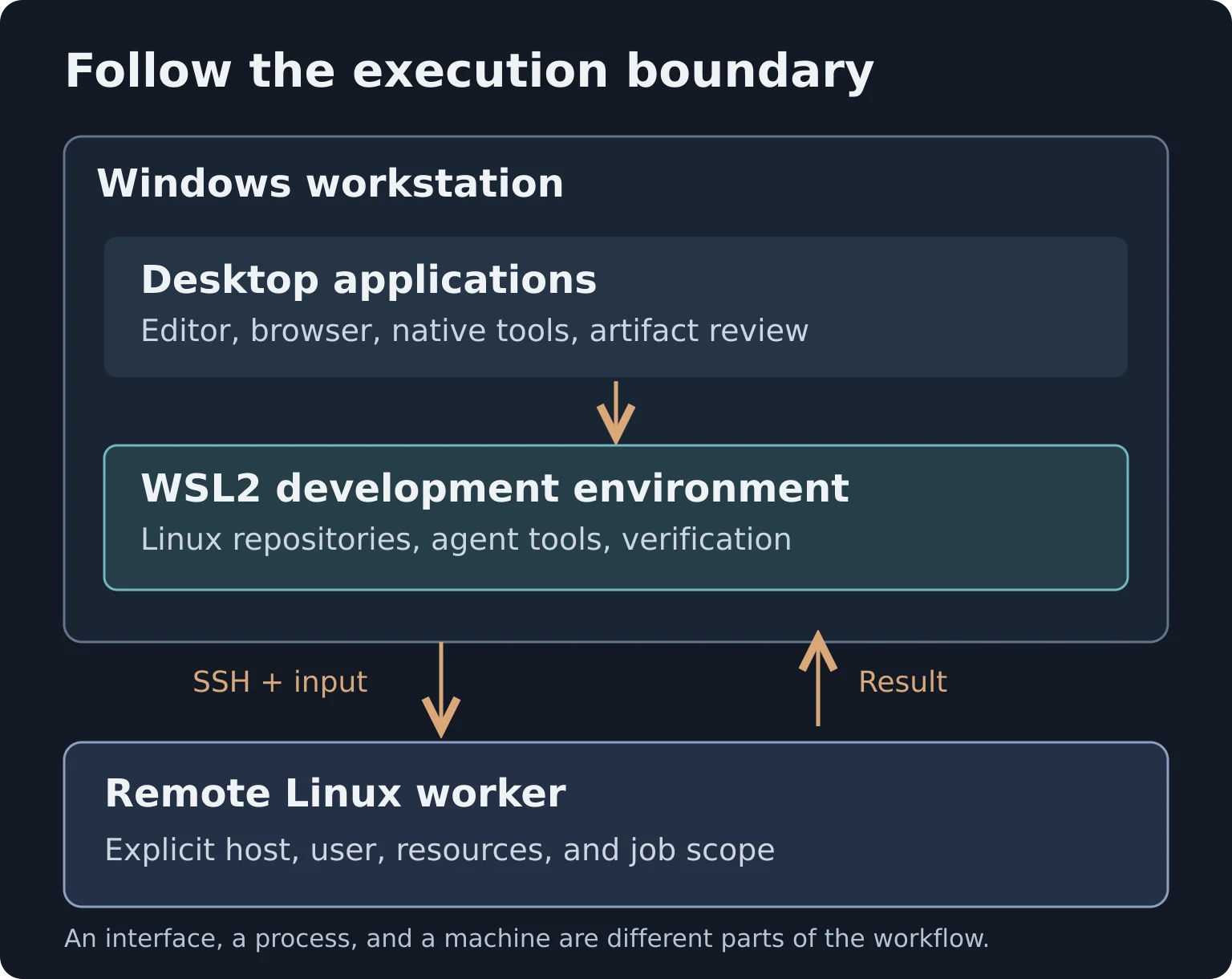
In a WSL terminal, establish your context before debugging a tool:
uname -s
pwd
id -un
command -v python3 git ssh
In Windows PowerShell, inspect the WSL installation separately:
wsl.exe --version
wsl.exe --list --verbose
Record the distribution and WSL version with your own setup notes. A desktop editor connected to WSL can use Linux tools; another window of that editor may be running against Windows files. The window title alone is insufficient evidence. Check the terminal and workspace connection.
For every recurring workflow, I want a short answer to four questions: Where does it run? Where does its input live? What can it change? Where will I inspect the result? Answer those before adding another machine or agent.
2. Give files a clear home
Keep Linux development repositories in the WSL Linux filesystem, such as ~/src. Use a WSL-aware editor connection to work there. Microsoft recommends placing files alongside the operating system tools that use them for performance. Microsoft's filesystem guidance.
A useful starting layout inside WSL is:
~/src/                 reference checkouts
~/worktrees/           isolated task checkouts
~/artifacts/           results to inspect or hand to another application
Each has a different lifecycle. A checkout tracks reviewed source. A worktree holds a specific task. An artifact is an output with an identifiable input and owner. Putting everything in a downloads folder makes those distinctions harder to recover later.
One file can have two path names
A Windows path such as C:\Users\developer\Downloads\report.json appears in WSL as /mnt/c/Users/developer/Downloads/report.json. A file inside WSL can be exposed to Windows through a \\wsl.localhost\... path. Convert paths instead of constructing them by hand:
wslpath -w "$PWD/report.json"Run that after creating the report later in this guide. Pass a Windows-visible path to a Windows application. Test that the receiving application supports that location; some need a copy in a Windows folder. Changing the spelling of a path does not transfer a file to a remote machine.
In one of my desktop bridges, the Windows application wrote results into a shared folder while the WSL reader used its Linux path. The reader also had to account for byte-order marks and line endings. The two processes needed an agreed file format as well as a common location.
For a new text-oriented repository, an explicit .gitattributes is a useful baseline:
* text=auto eol=lfReview an existing repository's policy before changing it. For generated interchange files, specify UTF-8 in the writer and parser. Python's encoding="utf-8-sig" can accept an optional UTF-8 byte-order mark; it does not decode an arbitrary legacy encoding.
Resolve the executable as well as the path
My WSL environment deliberately limits inherited Windows paths. That makes tool selection more predictable, but Windows executables may require an explicit location. command -v tells you whether a shell can resolve a tool. It does not establish that another harness launches with the same environment.
We also encountered a desktop launch that remained attached to its calling interop process. That taught me to check process ownership and inherited streams when an application opens but the launcher never returns. Desktop launching belongs in a bridge with a deliberate detach strategy, such as PowerShell Start-Process, and a separate check that the application actually started.
3. Treat networking as a sequence of checks
localhost is interpreted in the environment making the connection. It cannot identify a service on an arbitrary remote node.
WSL adds another detail. Its default NAT mode generally lets Windows reach Linux services through localhost, while Linux reaches Windows services using the Windows host address. Mirrored mode supports the Windows-to-WSL and WSL-to-Windows IPv4 loopback paths. Microsoft documents mirrored networking for Windows 11 22H2 and later. WSL networking.
My workstation uses mirrored networking. On a supported installation, the relevant choice in %UserProfile%\.wslconfig is:
[wsl2]
networkingMode=mirrored
Merge the setting into the existing section. Keep firewall protections in place and test the specific listener you need. Mirrored networking does not authenticate a connection or approve access to a signed-in application.
Changes to WSL configuration require a restart of the relevant environment. Plan that around active work: wsl.exe --shutdown stops all running distributions. Microsoft distinguishes this Windows-side configuration from the per-distribution /etc/wsl.conf. WSL configuration.
When a connection fails, narrow it in order:
Name: does the intended name resolve from the calling environment?
Transport: can the caller reach the intended listener?
Protocol: does that listener speak the protocol and route the client expects?
Identity and action: is this the right account, with permission for the requested operation?
We hit a useful example with a Windows browser debugging connection. Its conventional HTTP discovery URL returned 404, but the browser's current WebSocket endpoint worked. The 404 established that an HTTP server answered; it did not prove that the debugging transport was unavailable. The fix was to discover the endpoint through the browser's supported mechanism and use a client capable of connecting to it.
That is an observed behavior of that browser configuration. Recheck your own browser and client version. Debugging access to a signed-in browser can grant extensive account access; use a dedicated profile for experiments, keep endpoints private, and treat session routes as sensitive. My browser-pool guide covers ownership when agents share browser resources.
Make the remote worker explicit
An SSH alias keeps the tutorial readable. Adapt this example in ~/.ssh/config to your own hostname and user:
Host worker
    HostName worker.example.net
    User developer
    ForwardAgent no
worker.example.net is a placeholder. Use your machine's private DNS name or another address you control. Establish host-key trust and authentication through your normal setup; do not suppress host-key checking to make an agent proceed.
Then probe from the same WSL environment the agent will use:
ssh -o BatchMode=yes -o ConnectTimeout=5 worker 'uname -s'
ssh -o BatchMode=yes -o ConnectTimeout=5 worker 'command -v python3'
Expect Linux and a Python executable path. A successful mesh ping would establish reachability; these checks additionally exercise SSH authentication and the remote command environment. A noninteractive SSH command can have a different environment from an interactive login shell.
4. Coordinate agents at three separate boundaries
Claude Code, Codex, and Cursor do not automatically share instructions, permissions, memory, or session state. Make the repository's operating instructions explicit and verify how each harness loads them. Give every task a target directory, allowed scope, verification step, and stopping point.
Three boundaries matter when several agents work at once:
| Boundary | What it answers | What it does not provide |
|---|---|---|
| Task ownership | Who is working on this outcome? | Permission to publish or deploy |
| Worktree or resource ownership | Which checkout, browser, port, or GPU may this worker use? | Exclusive ownership of every shared dependency |
| Action permission | Which outward or consequential actions are authorized? | Proof that the action succeeded |
I use task claims before overlapping work and separate worktrees for edits. A worktree isolates the checked-out files; an exclusive task claim coordinates intent. Either one alone leaves gaps. My local-agent coordination tutorial demonstrates claims on a supported local filesystem. That local coordination mechanism does not establish fencing between machines.
From a clean reference checkout of a repository whose default branch is main, fetch and create task worktrees:
git fetch origin
git worktree add -b task/worker-report ../report-worker origin/main
git worktree add -b task/report-review ../report-review origin/main
git worktree list
Adapt main if your repository uses another default branch. Git manages linked worktrees and normally prevents checking out the same branch in two of them. Git worktree documentation.
Assign one worker a bounded change. Give the reviewer the resulting diff or commit after it exists. The two new worktrees initially contain the same base, so the reviewer must explicitly receive the worker's result. Worktrees also share repository metadata and may still contend for ports, caches, browsers, or remote machines.
A task brief can stay small:
Outcome: produce a report from the supplied synthetic input.
Workspace: the assigned worktree only.
Allowed: inspect, edit the report tool, run its checks.
Remote: run the bounded computation on the configured worker.
Completion: independently verified result and a reviewable diff.
Stop before: merge, deployment, publication, account changes.
This is a coordination instruction. Actual harness permissions and operating-system access must support the intended boundary. Text in a repository cannot prevent a process with broader access from touching other files.
Before a handoff, record the branch or commit, dirty files, exact artifact, verification performed, and remaining step. A session label is too weak: the next process may reuse it while running with different code or permissions.
5. Follow one job through the whole system
Before giving agents a complicated remote workflow, make one small job observable end to end. This example sends JSON from WSL to a Python process over SSH. The worker returns a report; a separate local check compares it with the original request.
There is no remote installation or output file. The input and result travel through standard streams. This is a bounded demonstration with no remote side effects, rather than a durable job scheduler.
Create a fresh folder in WSL and keep using the same shell:
DEMO_ROOT="$(mktemp -d)"
cd "$DEMO_ROOT"
printf '{"job_id":"demo-001","values":[2,3,5]}\n' > request.json
Create run_job.py there:
import json
from pathlib import Path
import shlex
import subprocess

REMOTE_PROGRAM = r'''
import hashlib
import json
import platform
import sys

raw = sys.stdin.buffer.read()
request = json.loads(raw)
values = request["values"]
report = {
    "schema_version": 1,
    "job_id": request["job_id"],
    "input_sha256": hashlib.sha256(raw).hexdigest(),
    "count": len(values),
    "total": sum(values),
    "executor_os": platform.system(),
}
print(json.dumps(report, sort_keys=True))
'''

request_bytes = Path("request.json").read_bytes()
# SSH passes its command through a remote shell. Quote that boundary too.
command = "python3 -c " + shlex.quote(REMOTE_PROGRAM)
result = subprocess.run(
    ["ssh", "-o", "BatchMode=yes", "-o", "ConnectTimeout=5",
     "worker", command],
    input=request_bytes,
    capture_output=True,
    check=True,
    timeout=30,
)
# Reject non-JSON output before replacing the result file.
json.loads(result.stdout)
pending = Path("report.json.pending")
pending.write_bytes(result.stdout)
pending.replace("report.json")
print("Received report.json; independent verification is next.")
Run it:
python3 run_job.pyStop if it fails. A failed SSH call or invalid response must not be interpreted as a completed job because a previous report happens to exist. The timeout bounds the local wait; it does not guarantee termination of arbitrary remote work after disconnect. That distinction matters when you later introduce jobs with side effects.
Create verify_report.py in the same folder:
import hashlib
import json
from pathlib import Path

raw = Path("request.json").read_bytes()
request = json.loads(raw)
report = json.loads(Path("report.json").read_bytes())
expected = {
    "schema_version": 1,
    "job_id": request["job_id"],
    "input_sha256": hashlib.sha256(raw).hexdigest(),
    "count": len(request["values"]),
    "total": sum(request["values"]),
    "executor_os": "Linux",
}
if report != expected:
    raise SystemExit("Report failed verification; inspect the input and result.")
print(
    f"Verified: {request['job_id']}, {len(request['values'])} values, "
    f"total {sum(request['values'])}, matching input bytes."
)
Then inspect it from the consumer side:
python3 verify_report.py
cat report.json
wslpath -w "$PWD/report.json"
The expected verification message is Verified: demo-001, 3 values, total 10, matching input bytes. Open the converted path in a Windows application that supports WSL paths. You have now followed input in Linux, execution on another Linux machine, a returned artifact, independent checking, and consumption on Windows.
For a concrete Windows check, replace the placeholder below with the path printed by wslpath, then run this in Windows PowerShell:
Get-Content -Raw -LiteralPath 'PASTE-THE-CONVERTED-PATH' |
    ConvertFrom-Json |
    Format-List job_id, count, total
Expect demo-001, 3, and 10. This exercises a Windows consumer separately from the Linux verifier.
The hash ties the report to specific input bytes. It does not prove the worker is trustworthy, that a real business calculation is correct, or that a public deployment occurred. SSH host authentication and the independent calculation establish different parts of this demonstration. For a real workload, choose a verification method appropriate to its output.
Try a deliberate failure: edit total in the report to 11, then run the verifier again. It should refuse the report. Run the job again to obtain a clean result. Changing the request after execution should also invalidate the returned input hash.
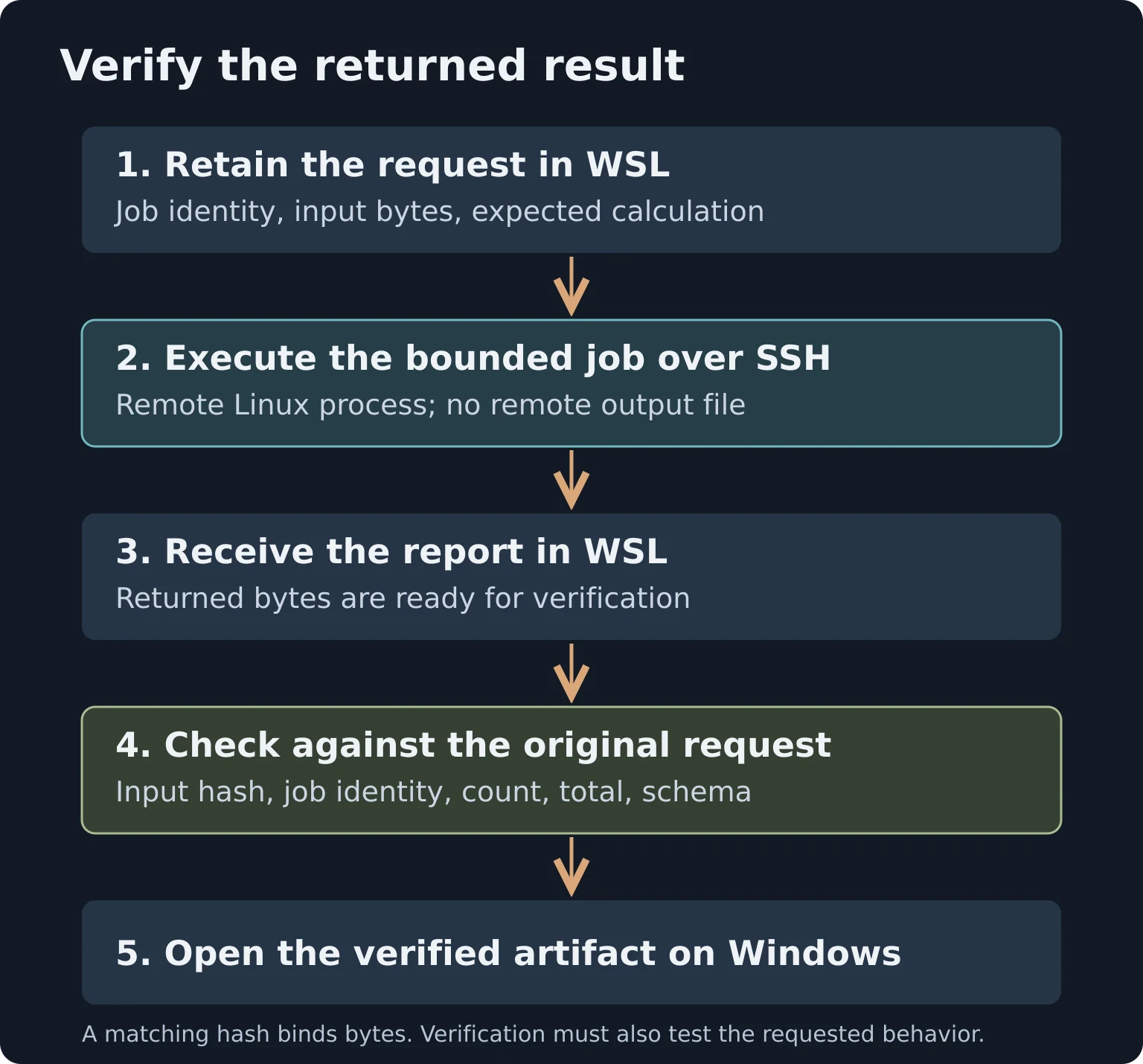
Now give one agent a bounded extension, such as adding a minimum value to the report. Give another agent the diff and ask it to test an incorrect total, a changed input, and an empty list. Use the task and worktree boundaries from the previous section. The exercise should produce an explainable result even if you replace either harness.
6. Separate service health from machine lifetime
My WSL environment uses systemd. A missed timer once looked like a scheduling problem, but the underlying issue was the WSL VM's idle lifetime. The VM shut down while catch-up work was still relevant. Changing its idle policy addressed that situation; it did not make the workstation an always-on server.
Microsoft explicitly notes that systemd services do not, by themselves, keep a WSL instance alive. A service manager and the Windows host's lifecycle are separate layers. Systemd in WSL.
On a distribution using systemd, inspect both service scopes:
systemctl --failed
systemctl --user --failed
systemctl --user list-timers --all
A listed timer establishes configuration or scheduling state. Inspect the service invocation, its logs, and the expected output to establish whether the work ran. Windows sleep, shutdown, and WSL termination remain outside that timer's control.
I place workloads that need continuous availability on the remote Linux machines. WSL stays useful for supervised development and explicitly managed local automation. If you choose to keep unattended work there, document how Windows starts the distribution, what happens after a missed run, and how you detect an absent result.
Apply the same reasoning to GPU work. An SSH connection establishes access, not an available GPU. Check resident workloads, coordinate use, and verify any required restoration before accepting a benchmark or render. A second agent should not evict another task's model simply because it can issue the command.
7. Diagnose authentication before reinstalling the agent
One of the more instructive failures happened before an agent produced its first response. Several entry points into the same harness stalled. The common dependency was an MCP OAuth credential store backed by a locked desktop keyring. Its unlock prompt depended on WSLg, and the GUI path was failing.
The process could start, but its startup dependency could not complete. Retrying the model request or reinstalling an editor would have targeted the wrong layer.
For that environment, we deliberately selected file-backed MCP credential persistence. Codex exposes this choice separately from model login and action permissions:
mcp_oauth_credentials_store = "file"This is a top-level setting in the Codex configuration. The documented alternatives are auto and keyring. Codex configuration reference.
Treat this as a tradeoff to evaluate after diagnosis. File-backed credentials become sensitive local files. Restrictive permissions limit access by other users, but do not encrypt the contents or protect against every process running as your user. Keep them out of Git, logs, screenshots, and unprotected backups. Repairing the keyring or GUI path may be the better answer in your environment.
My diagnostic sequence is to identify the shared failing startup dependency, check whether it needs an interactive prompt, and test a narrowly scoped remedy. Recheck behavior after a restart. Avoid dumping the process environment or credential files into an agent conversation to investigate a hang.
Authentication state also does not transfer merely because two harnesses share a computer. Establish which process, OS user, and credential store each one actually uses.
8. Make recovery part of the setup
Two recovery lessons changed how I operate this environment.
Monitor the host disk as well as the Linux filesystem
Large crash dumps filled my Windows system volume and broke WSL exports. A Linux-side free-space check did not describe the whole backup path. The producer, its destination, and the volume that hosts them all mattered.
In WSL, inspect the Linux and mounted Windows filesystems separately:
df -h / /mnt/cIn Windows PowerShell, inspect the host volume:
Get-Volume -DriveLetter CMy configuration limits the retained WSL crash-dump count. maxCrashDumpCount is a count limit, so a small number of large files can still consume substantial space. Inspect storage use and keep a deliberate retention policy. WSL configuration settings.
A backup process returning successfully is one piece of evidence. Check that the expected export was produced recently, then perform an isolated restore exercise. Keep source code, recoverable machine state, and sensitive credentials under appropriate, distinct backup policies.
Restore copies without creating a second live operator
An exported distribution can carry scheduled jobs, service enablement, credentials, and files that permit live actions. A restored copy may therefore have the ability to send, deploy, or mutate shared state. Our clone procedure explicitly keeps those capabilities inactive until promotion.
Before an export or restore exercise, inventory the mechanisms that can write outside the machine. Prepare the image and first-boot procedure so they remain inactive before normal user services start; inspect inherited configuration and action-enable state. Establish that only the intended instance can act before reconnecting those capabilities.
Do not assume disabling a timer removes every path to an action. The service can still be started manually, another scheduler may invoke it, and copied credentials may remain usable. The exact controls depend on your setup. The invariant is that a recovery test must not quietly become a second production writer.
A troubleshooting map to keep beside the terminal
| Symptom | First boundary to inspect | Useful distinction |
|---|---|---|
| Tool works in one harness but not another | Executable, user, directory, environment | Same computer can contain different launch environments. |
| Windows application cannot open an artifact | Path and filesystem visibility | Path conversion and file transfer are different operations. |
| WSL cannot reach a Windows listener | Networking mode, listener, firewall | Establish the actual Windows/WSL connection path. |
| A discovery URL returns 404 | Protocol and endpoint discovery | An HTTP response can coexist with a working different endpoint. |
| Several agent entry points stall at startup | Shared authentication or tool dependency | A hidden interactive prompt can block a headless workflow. |
| Timer is enabled but no result appears | VM lifetime, service invocation, output | A schedule is insufficient evidence of execution. |
| Two agents overwrite or duplicate work | Task claim, worktree, shared resource | Separate chats alone provide no exclusive ownership. |
| Export is old or missing | Producer, destination, host disk | Backup configuration does not establish a usable restore. |
Build fluency one boundary at a time
Start by locating your shell, repository, executable, and output. Make a Windows application consume an artifact produced in WSL. Add one remote computation and independently check its result. Then introduce a second agent with explicit ownership and a separate worktree. Exercise a failed connection, a rejected result, and a handoff before adding unattended work.
That sequence gives each new layer an observable purpose. My larger setup grew around real workloads and the problems they exposed. The durable skill is being able to trace a task across the system, recognize what each observation proves, and leave the next operator enough evidence to continue.